%20--%3E%3Cmetadata%20xmlns%3Ardf%3D%22http%3A%2F%2Fwww.w3.org%2F1999%2F02%2F22-rdf-syntax-ns%23%22%20xmlns%3Axsi%3D%22http%3A%2F%2Fwww.w3.org%2F2001%2FXMLSchema-instance%22%20xmlns%3Adc%3D%22http%3A%2F%2Fpurl.org%2Fdc%2Felements%2F1.1%2F%22%20xmlns%3Adcterms%3D%22http%3A%2F%2Fpurl.org%2Fdc%2Fterms%2F%22%3E%3Crdf%3ARDF%3E%3Crdf%3ADescription%3E%3Cdc%3Atitle%3EWaves%3C%2Fdc%3Atitle%3E%3Cdc%3Acreator%3EDiceBear%3C%2Fdc%3Acreator%3E%3Cdc%3Asource%20xsi%3Atype%3D%22dcterms%3AURI%22%3Ehttps%3A%2F%2Fwww.dicebear.com%3C%2Fdc%3Asource%3E%3Cdcterms%3Alicense%20xsi%3Atype%3D%22dcterms%3AURI%22%3Ehttps%3A%2F%2Fcreativecommons.org%2Fpublicdomain%2Fzero%2F1.0%2F%3C%2Fdcterms%3Alicense%3E%3Cdc%3Arights%3E%E2%80%9CWaves%E2%80%9D%20(https%3A%2F%2Fwww.dicebear.com)%20by%20%E2%80%9CDiceBear%E2%80%9D%2C%20licensed%20under%20%E2%80%9CCC0%201.0%E2%80%9D%20(https%3A%2F%2Fcreativecommons.org%2Fpublicdomain%2Fzero%2F1.0%2F)%3C%2Fdc%3Arights%3E%3C%2Frdf%3ADescription%3E%3C%2Frdf%3ARDF%3E%3C%2Fmetadata%3E%3Cdefs%3E%3Cg%20id%3D%22layer-calm-e2f1c7e5%22%3E%3Cpath%20d%3D%22M0%2016c28%200%2052-6%2084-5s72%2010%20116%205v114H0Z%22%20fill%3D%22%23ffffff%22%2F%3E%3C%2Fg%3E%3Cg%20id%3D%22layer-surge-e2f1c7e5%22%3E%3Cpath%20d%3D%22M0%206c24%200%2044%204%2062%2014%2016%208%2034%208%2052%202%2020-7%2038-12%2054-12%2012%200%2024%204%2032%206v114H0Z%22%20fill%3D%22%23ffffff%22%2F%3E%3C%2Fg%3E%3Cg%20id%3D%22layer-rolling-e2f1c7e5%22%3E%3Cpath%20d%3D%22M0%208c12%200%2023%2016%2035%2016S58%208%2070%208s23%2016%2035%2016%2023-16%2035-16%2023%2016%2035%2016c8%200%2017-8%2025-10v116H0Z%22%20fill%3D%22%23ffffff%22%2F%3E%3C%2Fg%3E%3Cg%20id%3D%22layer-ripple-e2f1c7e5%22%3E%3Cpath%20d%3D%22M0%2012c6%200%2012%2010%2018%2010s12-10%2018-10%2012%2010%2018%2010%2012-10%2018-10%2012%2010%2018%2010%2012-10%2018-10%2012%2010%2018%2010%2012-10%2018-10%2012%2010%2018%2010%2012-10%2018-10%2012%206%2020%205v113H0Z%22%20fill%3D%22%23ffffff%22%2F%3E%3C%2Fg%3E%3Cg%20id%3D%22body-quartet-e2f1c7e5%22%3E%3Cg%20opacity%3D%22.16%22%3E%3Cg%20class%3D%22dbwa-l1%22%3E%3Cuse%20transform%3D%22translate(-50)%20translate(-4.2834%2C%200.40469)%22%20href%3D%22%23layer-calm-e2f1c7e5%22%2F%3E%3C%2Fg%3E%3C%2Fg%3E%3Cg%20opacity%3D%22.28%22%3E%3Cg%20class%3D%22dbwa-l2%22%3E%3Cuse%20transform%3D%22translate(-50%2022)%20translate(-0.6726%2C%20-1.76904)%22%20href%3D%22%23layer-surge-e2f1c7e5%22%2F%3E%3C%2Fg%3E%3C%2Fg%3E%3Cg%20opacity%3D%22.4%22%3E%3Cg%20class%3D%22dbwa-l3%22%3E%3Cuse%20transform%3D%22translate(-50%2044)%20translate(21.385%2C%202.13317)%22%20href%3D%22%23layer-rolling-e2f1c7e5%22%2F%3E%3C%2Fg%3E%3C%2Fg%3E%3Cg%20opacity%3D%22.52%22%3E%3Cg%20class%3D%22dbwa-l4%22%3E%3Cuse%20transform%3D%22translate(-50%2066)%20translate(-1.8808%2C%20-2.98493)%22%20href%3D%22%23layer-ripple-e2f1c7e5%22%2F%3E%3C%2Fg%3E%3C%2Fg%3E%3C%2Fg%3E%3Cg%20id%3D%22bodyFree-default-e2f1c7e5%22%3E%3Cuse%20href%3D%22%23body-quartet-e2f1c7e5%22%2F%3E%3C%2Fg%3E%3Cg%20id%3D%22rotation-free-e2f1c7e5%22%3E%3Cuse%20transform%3D%22rotate(131.0243%2C%2050%2C%2050)%22%20href%3D%22%23bodyFree-default-e2f1c7e5%22%2F%3E%3C%2Fg%3E%3Cg%20id%3D%22animation-none-e2f1c7e5%22%3E%3C%2Fg%3E%3CclipPath%20id%3D%22clip-e2f1c7e5%22%3E%3Crect%20width%3D%22100%22%20height%3D%22100%22%20rx%3D%220%22%20ry%3D%220%22%2F%3E%3C%2FclipPath%3E%3C%2Fdefs%3E%3Cg%20clip-path%3D%22url(%23clip-e2f1c7e5)%22%3E%3Crect%20width%3D%22100%22%20height%3D%22100%22%20fill%3D%22%23a21caf%22%2F%3E%3Cuse%20href%3D%22%23rotation-free-e2f1c7e5%22%2F%3E%3Cuse%20href%3D%22%23animation-none-e2f1c7e5%22%2F%3E%3C%2Fg%3E%3C%2Fsvg%3E)
Q1 P1
Introduction
Welcome to your very first problem set! Follow the instructions on your computer and submit the assignment once everything is complete.
Folder Fun
Open up your files app and let's create some folders! In your Documents (check sidebar) folder, create a new folder named Assignments. Now go inside this folder and create a folder named Q1. Open it. Finally, create a directory (folder) here named P1.
Create all the following assignment files in this folder.
LibreOffice Writer Task
Your first task here is to install the Inter font from Google fonts.
Done? Let's proceed.
Now, open LibreOffice Writer document and save it under the P1 folder with the name of rich_doc. Ctrl + S is the keyboard shortcut. Your task is to copy the following text into your newly created document (use Ctrl + C then Ctrl + V to copy and paste!):
# The Great Librarry of Alexandria

## A Place Full of Knowledge

More than 2,000 years ago, the ancient city of Alexandria in **Egypt** became home to one of the most famous librarries in history.

The Librarry of Alexandria was created to collect knowledge from all over the world.

Scholars travelled from distant lands carrying:
- Books
- Maps
- Scientific ideas
- Poems
- Historical records

At its peak, the librarry may have contained *hundreds of thousands* of scrolls.

> “Knowledge is the treasure of civilization.”

## Life Inside the Librarry

The librarry was **not** only a place for storing books.

It was also:
- A research center
- A meeting place for scholars
- A school for learning and discussion

People studied subjects such as:
1. Astronomy
2. Mathematics
3. Medicine
4. Philosophy


## Ancient vs Modern Learning

| Topic | Ancient Times | Modern Times |
|---|---|---|
| Books | Handwritten scrolls | Printed & digital |
| Learning Speed | Slow | Instant access |
| Storage | Physical rooms | Cloud storage |
| Communication | Messengers | Internet |

## Final Thought

Even though the original librarry no longer exists, its story reminds us that learning, preservation, and curiosity are important for every generation.
Format the content
Format it according to the following rules:
- Change all the text to use Inter font and 16pt font size.
- Line starting with one
#should be made 20pt font and centre aligned - Line starting with one
##should be 16pt font and kept left aligned - Text like
*cs17*(wrapped in single asterisk symbol) should be converted to cs17 in italics. - Text like
**cs17**(wrapped in double asterisk symbol) should be converted to cs17 in bold. - Any line starting with
>should be converted to blue color with a font size of 12pt.
This should be made a table with 3 columns and 4 rows:
| Topic | Ancient Times | Modern Times |
|---|---|---|
| Books | Handwritten scrolls | Printed & digital |
| Learning Speed | Slow | Instant access |
| Storage | Physical rooms | Cloud storage |
| Communication | Messengers | Internet |
Topic, Ancient Times and Modern Times are the columns. Books, Handwritten Scrolls, and Printed & digital is the first row and so on.
Typos
The person who was typing the above document made a mistake in spelling (typo) of the word Library. It is spelled wrongly as "Librarry". Use the find and replace tool in LibreOffice write to fix the spelling of all the occurrences of the incorrect word.
Header
Download the following image (right click > save image) and insert it in the document header:
This should repeat in every page automatically as we saw in the class.
 Hint: Header Area
Export to PDF
Now export this document as PDF (check notes or refer internet on how to export a PDF from LibreOffice Writer) with the same name as the writer file and store that in the P1 folder too.
Spreadsheet Task
CS17 students are helping organize classroom supplies for daily learning activities. Each student has requested items such as notebooks, pens, chart papers, folders, and other useful materials. In this spreadsheet task, you will create a clean order register, calculate the total cost of each request, and more.
Data Entry
Create a new Calc document, save (you know the shortcut by now 😉) it under the P1 directory created earlier, and give it a name of library. Enter the below data in your newly created sheet:
First Name,Last Name,Item Name,Category,Quantity,Price Per Item,Payment Mode
Aarav,Sharma,Notebook,Stationery,3,45,Cash
Meera,Patel,Blue Pen,Stationery,5,10,UPI
Kabir,Verma,Chart Paper,Art Supplies,4,12,Cash
Anaya,Singh,Folder,Files,2,30,UPI
Rohan,Gupta,Marker,Stationery,3,25,Cash
Sara,Khan,Glue Stick,Art Supplies,2,20,UPI
Vihaan,Mehta,Sticky Notes,Office Supplies,4,35,Cash
Arjun,Iyer,Cardboard Sheet,Art Supplies,5,15,Cash
Zoya,Malik,Stapler,Office Supplies,1,90,UPI
The first row in the above list are the column headers. Here is how it will look:

Calculations
Total Cost
Your first task is to add a new column next to Payment Mode named Total Cost. Total cost is equal to the quantity multiplied by price per item. Use a simple formula for first row and then use autofill to fill it for rest of the rows.
Total Items
Leaving a few empty rows and then create the below two cells:
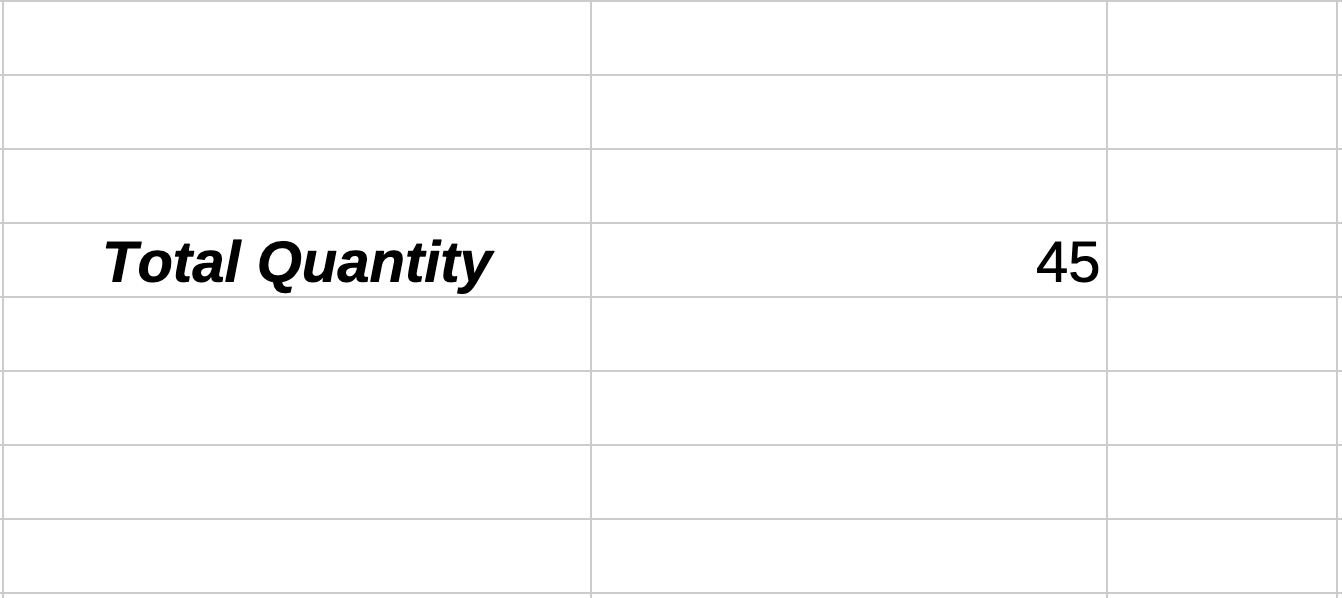 Total Quantity should be both bold and italic
The quantity number will be calculated using the quantity column. Use the function you think is relevant 😁
New: Text Functions
In the lectures, we learned about these functions in formulas:
SUM(E4:E10): Calculates and displays the sum of cells E4, E5, .. , E10AVERAGE(): Calculates averageMIN,MAX
But these functions apply on numbers. But Calc has another category of functions which work on textual data or text. Here is an example of a text function to all capital letters (called uppercase):
=UPPER("john") -> "JOHN"
=UPPER(E4) -> uppercase of whatever is in cell E4
Notice how the raw text data is surrounded by " marks and not cell ID. Similarly there is a LOWER function that converts the given text to lowercase (all small letters). One useful function is CONCAT which is used like this:
=CONCAT("A", "B")
This formula will output AB. This is called Concatenation which means to join two texts together. Try the above functions in your spreadsheet.
Full Name Column
Add a new column in your sheet with the heading of Full Name. Use the CONCAT function to combine the first name and last name column to show the full name. Don't forget to use the autofill feature for rest of the rows!
Screenshot
Take a screenshot of this sheet with all the columns and save it in the P1 folder (it will be stored somewhere else by default, you will have to cut and paste the image file).
Submission
Make sure you have saved the changes in all the files. Take the files (verify that in total there will be 4 files inside the ZIP), compress them into a .ZIP file and email it to assignments@cs17.org